
How to Change Instagram Account to Business on PC: A Step-by-Step Guide
You can change an Instagram account to a Business account on a PC through Instagram’s professional account settings. A professional account is Instagram’s umbrella term for Business and Creator accounts. You do not need a Facebook Page just to switch. If you are setting up Instagram for a shop, service, or company, the desktop option lets you make that change without reaching for your phone. The steps below explain where to find the setting and what to consider before you confirm. You will also see how the account type affects visibility, profile details, and connected tools, so you can make a choice that suits your work.
Key Takeaways
- Instagram supports Business conversion on a PC.
- A Facebook Page is optional for switching.
- Professional accounts include Business and Creator types.
- A private profile becomes public after the switch.
- Choose the type that fits your work and tools.
The key choice is whether the Business account’s tools and public profile suit how you use Instagram.
How to Change Instagram Account to Business on PC
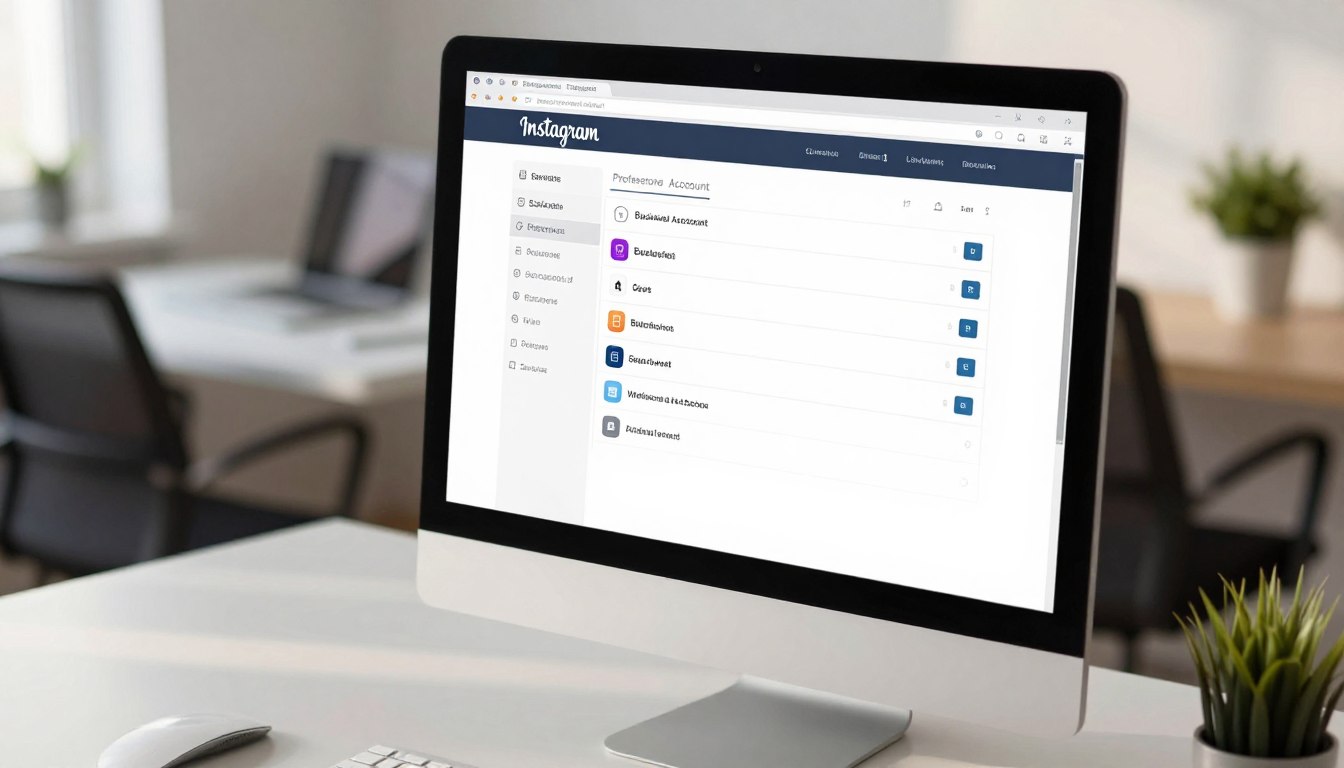
Instagram’s desktop account-type control is under More > Settings > Account type and tools in For professionals. The desktop route works through Instagram.com, and labels may vary slightly after interface updates. The account-type setting remains the place to start.
Sign in at Instagram.com, click More in the lower-left menu, and open Settings. Under For professionals, choose Account type and tools, then select Switch to professional account. That option starts the setup for changing your personal account into a professional account.
Open Account type and tools
Use the desktop menu to reach the account type setting, rather than looking for a separate Business-only control. You can switch to a professional account there, then choose the business account option during setup. The category you select describes your work; it does not decide whether the account is Business or Creator.
Switching is free, takes about two minutes, and can be reversed.
After the first screen, follow the prompts in order. Instagram may show slightly different wording or placement as its interface changes, but the desktop route still leads to the type tools.
Complete the Business account setup
Use these five steps to finish the account type flow:
- Start the professional-account flow from the account-type setting.
- Choose a category that describes your work.
- Select Business as the account type.
- Add contact details or skip them for now.
- Finish the remaining on-screen prompts.
For a laptop, that sequence covers how to change the account type on Instagram and how to switch to a professional account on Instagram. You can add contact details later if you prefer to set up the profile first. Review each prompt before continuing, since some steps offer optional profile details alongside required choices.
Confirm that the account now displays Business tools before leaving the settings flow.
What Changes When You Switch to Business?
The biggest change is visibility: a private profile becomes public when you switch to a professional account. Public means broader reach, because people beyond your follower list may see or share your content. Professional accounts cannot remain private.
If you switch a private profile, Instagram accepts its pending follow requests as the profile goes public. Public posts may be viewed, shared, remixed, or embedded, subject to your settings. Teens under 16 may need permission to make an account public, so age-related approval can affect the change.
A private profile becomes public
The change applies to the profile’s visibility, not just to a business label beside your name. People who do not follow you may be able to find your public posts, and they can share them beyond your existing audience. Review the audience and sharing controls that matter to your business before you proceed.
Your existing account details stay
Your followers, posts, and username stay the same after the switch. Instagram does not notify followers that you changed the account type, so you do not need to announce the setting change unless you want to. The profile remains your existing account rather than a newly created page.
That continuity can make a Business account a practical fit when you already use Instagram to reach customers. The main tradeoff is that private-profile protections no longer apply. If you share personal material on the same account, consider whether it belongs on a public profile before converting it.
Review the profile’s privacy settings before confirming if you do not want its posts visible to the public.
Business or Creator: Which Account Type Fits Your Work?
Choose Business for a shop, service, or company; choose Creator for an artist, influencer, or personal brand. Your work is the clearest guide, while the tools you depend on can settle close calls. Business and Creator are the two professional account types.
Both types offer professional features, but their contact controls, music access, and platform connections differ. A Creator account may suit a personal brand that prioritizes trending audio. A Business account may suit a company that needs full API access for third-party management platforms.
| Attribute | Business | Creator |
|---|---|---|
| Best fit | Shops, services, and companies | Influencers, artists, and personal brands |
| Contact-button options | Email, phone, and address buttons | Contact buttons can be hidden |
| Reels music access | Commercially licensed tracks | Full music library, including trending audio |
| Third-party API access | Full API access for management platforms | More limited API access |
Business accounts provide contact buttons for email, phone, and address. Creator accounts can hide their contact buttons, which may suit a personal profile that does not want to show business contact details. Music access also differs: Business accounts use commercially licensed Reels tracks, while Creator accounts can use the full music library, including trending audio.
If you want to switch to a Creator account, open Account type and tools, choose Switch account type, and select Creator when that option is available. This is a different choice from selecting Business, and you can choose the type that matches your current work.
Check the music library and the integrations you rely on before settling on Business.
What Should You Add to Your Business Profile?
A useful Business profile makes its category and contact route clear to a potential customer. Keep the details practical: choose a category people recognize, then decide which ways of reaching you belong on the profile. Professional accounts include audience Insights, a profile category label, and optional contact buttons.
You can add contact details during setup or skip them and return later. To adjust what visitors see, open Edit profile, then Profile display. There, choose whether to show the category label and contact information on the profile.
Add contact details people can use
Use contact info that reaches the person who can answer a customer. Depending on your work, that might be an email address, phone number, or business address. Contact buttons are optional, so you can leave them off if public contact details do not suit your setup.
Check that each detail is current and written clearly. A mistyped email or old phone number can leave a potential customer with no useful way to reach you. If several people manage customer questions, use the contact route your team can monitor.
Choose and display a relevant category
Instagram offers more than 1,000 business categories, so select the closest accurate label rather than choosing one for reach. A category helps visitors understand what your business does before they browse your posts. You can decide whether that label appears on the profile.
Run through this short profile checklist:
- Select a category customers recognize.
- Verify the contact details you added.
- Confirm whether the category and contact details are displayed.
After setup, Insights can help you review audience activity and post performance. Use those figures to understand how people interact with your profile, not as a promise that a particular post or contact button will lead to sales. Your display choices can also change as your contact process evolves.
Check the profile as a visitor would, so you can confirm the category and contact options are easy to find.
Do You Need a Facebook Page for Instagram Business Tools?
You can switch to a Business account without a Facebook Page, but Meta Business Suite scheduling requires a Page link. The tool makes the difference: changing account type and scheduling through Meta Business Suite are separate tasks. A Facebook Page is optional for the switch itself.
Instagram’s native scheduler is separate from Meta Business Suite. As of March 2026, public accounts, including personal accounts, can use Instagram’s native post scheduler, while private accounts cannot. Meta Business Suite scheduling requires your Instagram account to be linked to a Facebook Page.
| Task | Facebook Page required | What to expect |
|---|---|---|
| Switching to professional | No | Business or Creator account setup |
| Native Instagram scheduling | No | Available to public accounts, not private accounts |
| Meta Business Suite scheduling | Yes | Instagram account must link to a Facebook Page |
Professional accounts are associated with a Meta Business Portfolio, which may be created automatically during setup. A Meta Business Portfolio helps group business assets, but its association does not mean you must connect a Facebook Page just to convert the account.
Instagram also has a profile-switching feature that moves between profiles across Facebook and Instagram. As of 2026, that feature is mobile-only and not available to all users. It is separate from the desktop account-type conversion, so it will not replace the settings flow on a PC.
For scheduling, Meta Business Suite requires an Instagram account linked to a Facebook Page. If you only need Instagram’s native scheduler, the public-account requirement is the relevant distinction. Choose the connection based on which tool you plan to use.
Skip the Page link during conversion if you do not need Page-connected tools yet.
How to Switch Back or Handle Multiple Instagram Accounts
You can switch a Business account back to personal, but doing so removes ads tools and disconnects a linked Facebook Page. The change is reversible, though connected tools may need attention afterward. Returning to personal changes which business features stay available.
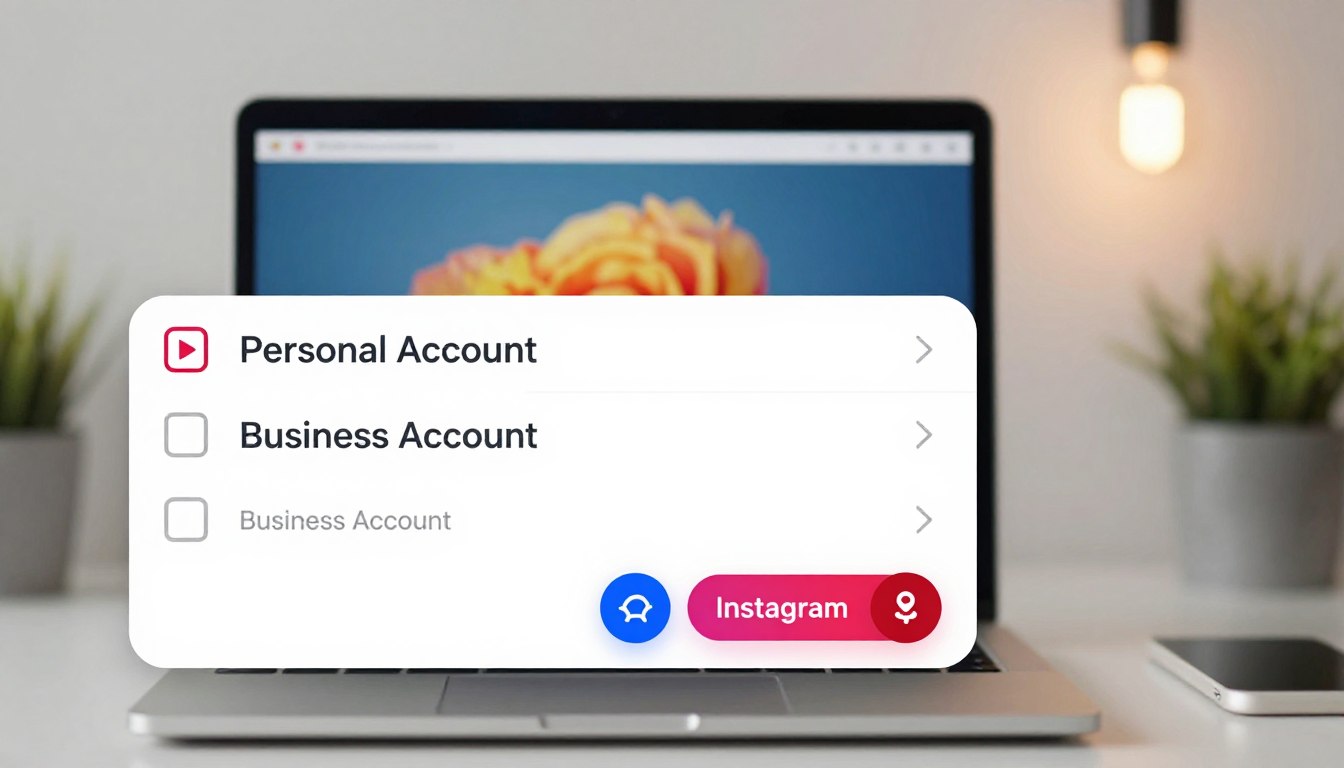
To make the change, open Account type and tools, choose Account type, then select the option to switch to a personal account. This changes the account type, not the Instagram login you use to access the profile.
Return to a personal account
Before switching, consider whether you still rely on ads tools or a connected Facebook Page. The Page disconnects when you return to a personal account, so a Page-linked workflow will stop being connected until you set it up again. The account itself remains yours.
The Instagram app supports up to five accounts signed in at once on one phone or tablet. That is a device sign-in limit, not a limit on how many accounts you can own.
Create or switch among accounts
On a laptop, use the account switcher when it appears in Instagram’s desktop interface. If you do not see it, sign out and sign in to the other account. Switching between profiles changes which account you are using; it does not change either account’s type.
You can create a second account on desktop by signing out at instagram.com and selecting Sign up. Enter an email address or phone number, choose a username, and create a password. Owning two Instagram accounts is allowed, and the app’s simultaneous sign-in limit applies only to one phone or tablet.
Separate accounts can keep a personal profile apart from a shop or work profile. Keep the login details accessible, especially if you sign out often to move between accounts on your computer. A clear username also helps you tell the profiles apart when the account switcher is available.
Before changing back, make sure you are prepared to reconnect the Page if you later need a Page-linked tool.
Conclusion
A Business account makes sense when its public-facing contact options and management tools match your needs. Desktop conversion is straightforward, but the account type should fit the audience you serve and the workflow you use. A public profile also deserves a deliberate privacy check before you confirm the change.
Your next step is to open the profile settings and confirm the account type before adding contact details or linking business assets. That quick review helps ensure you are setting up the profile you intend to manage, rather than selecting a type by habit.
Open Account type and tools on your PC and confirm the profile is set to the type you intend to use.
FAQ
How do I change my Instagram account to a professional account?
On desktop, open More > Settings > Account type and tools under For professionals, then select Switch to professional account and follow the prompts. You will choose a category and then select Business or Creator. The category describes your work, while the account type determines which professional features apply. You can add contact details during setup or skip them.
Can I use Instagram on my laptop without my phone?
Yes, you can create an Instagram account and convert it to a professional account on a desktop computer. You need a browser and your login details to use Instagram.com. The separate feature for switching profiles across Facebook and Instagram is mobile-only as of 2026, and Instagram does not make it available to every user.
How do I switch Instagram accounts on my laptop?
Use the account switcher if it appears in Instagram’s desktop interface; otherwise, sign out and sign in to the other account. The switcher changes the active profile, not its account type. If you need to move between work and personal profiles often, keep each account’s login details available so you can sign back in when the switcher is missing.
How do I create a second Instagram account?
On desktop, sign out at instagram.com, choose Sign up, and enter an email address or phone number, a username, and a password. Pick a username that helps you distinguish the new profile from your existing one. After creating it, sign in to use the account; the desktop account switcher may also let you move between profiles.
Is it allowed to have two Instagram accounts?
Yes, you can own two Instagram accounts. The five-account limit applies to accounts signed in at the same time in the Instagram app on one phone or tablet, not to the number of accounts you may own. You can use separate profiles for different purposes, such as personal posts and a business, and sign into them as needed.
If you want to dig further into bitcoin’s lowest price ever, read our Bitcoin’s Lowest Price Ever guide.
If you want to dig further into future of ai in business, read our Future of AI in Business guide.
If you want to dig further into internet, read our Internet guide.